Litchi Waypoint Mission to DJI Fly Hyperlapse Mission Converter
InstructionsBETA!!!
Instructions
This application will convert a Litchi waypoint mission into a DJI Fly hyperlapse JSON file.
In page one of Litchi Waypoint Mission to DJI Fly Hyperlapse Mission Converter:
Provide a name for this hyperlapse mission. If no name is provided, the basename of the input file will be used.
Set the time interval between photos. For fast-moving objects such as cars, use a small value of 1 or 2 seconds. For slow-moving objects such as clouds, use a larger value of 10 to 20 seconds.
Set the desired hyperlapse duration in seconds.
Enter the geoid height. This value may be obtained by entering the GPS coordinates of the mission into the Geoid Height Calculator. Since this value changes slowly over distance, this application will remember this value for future conversions.
Specify a Litchi CSV file to be converted.
Generate the hyperlapse mission and review the resulting parameters.
In page two of Litchi Waypoint Mission to DJI Fly Hyperlapse Mission Converter:
Review the displayed mission plot and mission data.
Download the ZIP file.
Uncompress the ZIP file to extract a hyperlapse mission folder.
On the device running DJI Fly:
Navigate to the hyperlapse folder.
Copy the created hyperlapse mission folder created by Litchi Waypoint Mission to DJI Fly Hyperlapse Mission Converter to the hyperlapse folder on the flying device running DJI Fly.
When ready to execute the hyperlapse mission in DJI Fly:
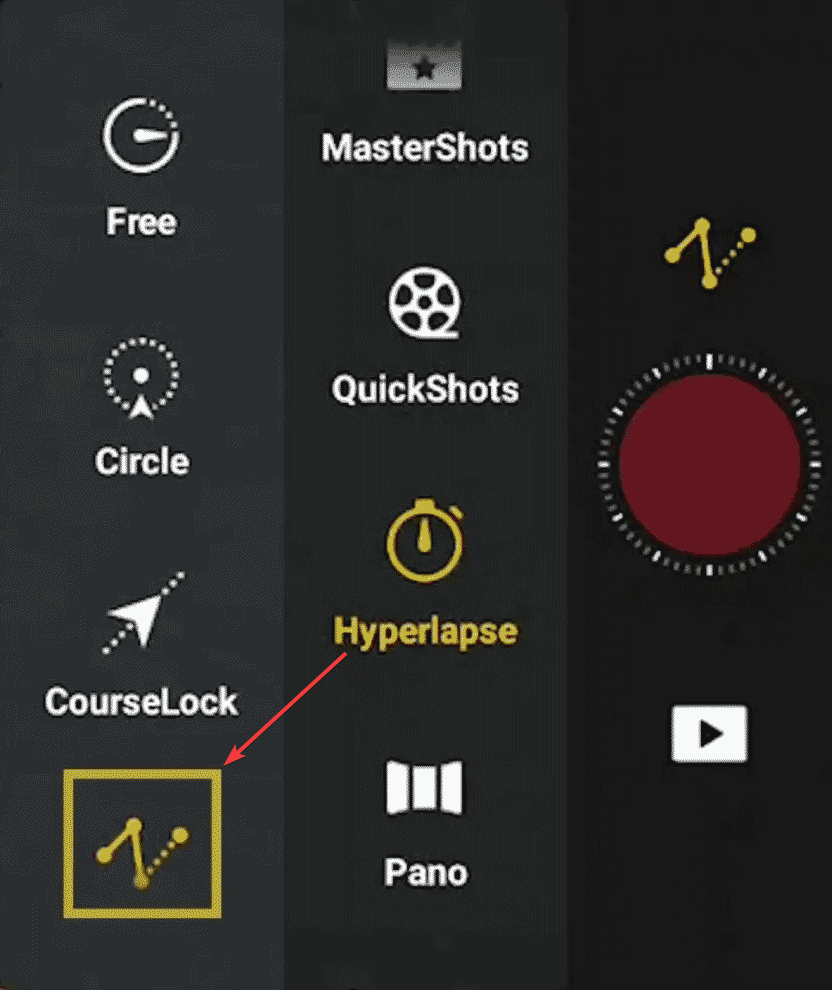
Select the hyperlapse function
Select the waypoints option
Open the hyperlapse mission created with this utility
Verify the hyperlapse mission parameters (such as interval and duration)
Each waypoint image will contain a waypoint number. Example: "Waypoint 3".
Start the hyperlapse
DJI Fly Hyperlapse
DJI Fly hyperlapse waypoint missions can be created and then saved on the
flying device. One disadvantage of this process is that the hyperlapse mission
must be created with the drone in the air. This web application enables the
conversion of a Litchi waypoint mission (in CSV format) into a DJI Fly
hyperlapse mission stored in JSON format.
DJI Fly hyperlapse missions are stored in the "Hyperlapse" folder on the
device running the DJI Fly application. Each hyperlapse mission is located in
its only sub-folder and is comprised of a JSON file containing the mission
parameters and two or more PNG image files that are displayed with each
waypoint in DJI Fly.
This application produces a ZIP file that must be uncompressed. The contents
of the ZIP archive can then be copied to the "Hyperlapse" folder of the flying
device. Unlike regular waypoint missions, there is no need to create a "dummy"
hyperlapse to be overwritten. The new hyperlaps mission can simply be dropped
into place in the "Hyperlapse" folder.
Notes
It is unclear which DJI drones support this hyperlapse format. I know the
newer drones such as the Mavic 3/4 series, the Air 3 series, and the Mini 4/5
Pro do. If you successfully use this utility for other drones, please let me
know.
When creating a waypoint hyperlapse manually, DJI Fly imposes several
undocumented constraints on the allowable distance and heading changes between
waypoints. When creating a waypoint hyperlapce using this utility, those
contstraints appear to be relaxed. Instead, DJI may silently adjust one or
more parameters to make the mission execute.
Geoid Height: For reasons that are unclear, the height of DJI
hyperlapse missions require the use of the height above the WGS84 ellipsoid. The "altitude" parameter within a DJI
hyperlapse JSON file represents the height of the drone above the WGS84
ellipsoid. This height can be computed as the height AGL plus the orthometric
height (Google elevation) plus the difference between the geoid height and the ellipsoid. In order to calculate this,
a call to the Google elevation API is made and the geoid height must be
provided. Fortunately, the geoid height can be queried on-line. Even with this
calculation, the resulting drone height AGL may vary up to five meters.
Please use caution when flying a hyperlapse mission close to ground.
Important: The altitude of DJI Fly hyperlapse missions has
been found to be inconsistent. For reasons that remain unclear, saved
hyperlapse waypoint missions will sometimes/often fly at an altitude different
(usually higher) from their originally intended height. This issue has been
reported by multiple users, yet DJI has not formally acknowledged it. As a
result, caution is strongly advised when re-flying saved hyperlapse missions,
including those generated with this utility.
More information is available.
It has been reported that when the hyperlapse mission is executed, a duplicate
hyperlaps mission is created. I have not experienced this so it is unclear
what may have caused that.